Unity: Open Scene Window - Your Comprehensive Guide
Introduction
Browse scripts, prefabs, shaders, and tools built for Unity. One subscription, unlimited downloads.
Unity is a powerful game development engine that offers a wide range of features to create stunning games and applications.
When I was first starting, I closed the unity scene window. No big deal, right? As it turns out, it’s a big deal. I couldn’t figure out how to open the scene window. When I finally figured it out, I felt so silly.
One of the fundamental skills every Unity developer should master is opening the Scene Window. I’ll take you through opening the Scene Window in Unity in this comprehensive guide. We will go step by step so it is easy to follow. I will also include visual animations so you can see how to open the scene window. Whether you are a beginner or an experienced developer looking for a refresher, this article will help.
How do I open the Scene Window?
To start with Unity, you must learn how to open the Scene Window. Here’s a step-by-step guide:
Launch Unity
It would help if you launched Unity on your computer. This way, you can follow this guide to open the Scene Window. If you still need to install Unity (why are you reading this? :)), visit the official Unity website to download and install the latest version.
Create or Open a Project
Once Unity is up and running, you can either create a new project or open an existing one. Click “New” to create a new project or “Open” to access a current project from your computer.
Open Scene Window
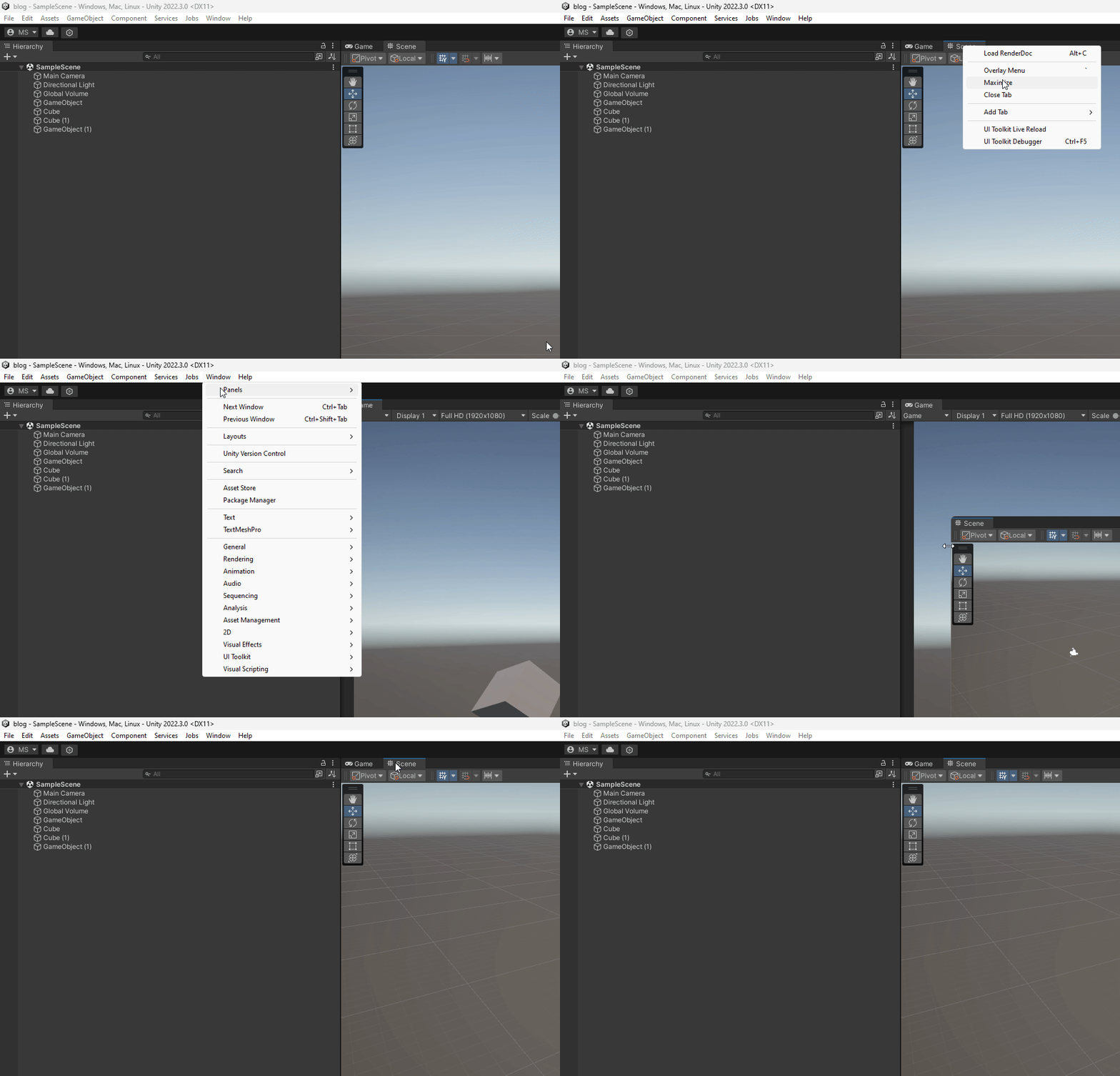
You can find the most essential functions in Unity in the Menu bar. The Open Scene Window is no different. Like other windows, Unity located it in the"Window" menu. To open the Scene Window, follow these steps:
- Go to the “Window” menu in the top toolbar.
- Click on the “General” menu.
- To open the Unity Scene Window, click on "Scene".
Arrange the Scene Window
Once you’ve selected “Scene,” the Scene Window will appear on your screen. Good job!
You can arrange its position and size according to your preferences by clicking and dragging its title bar or edges. You can also drag and drop it into your UI layout.
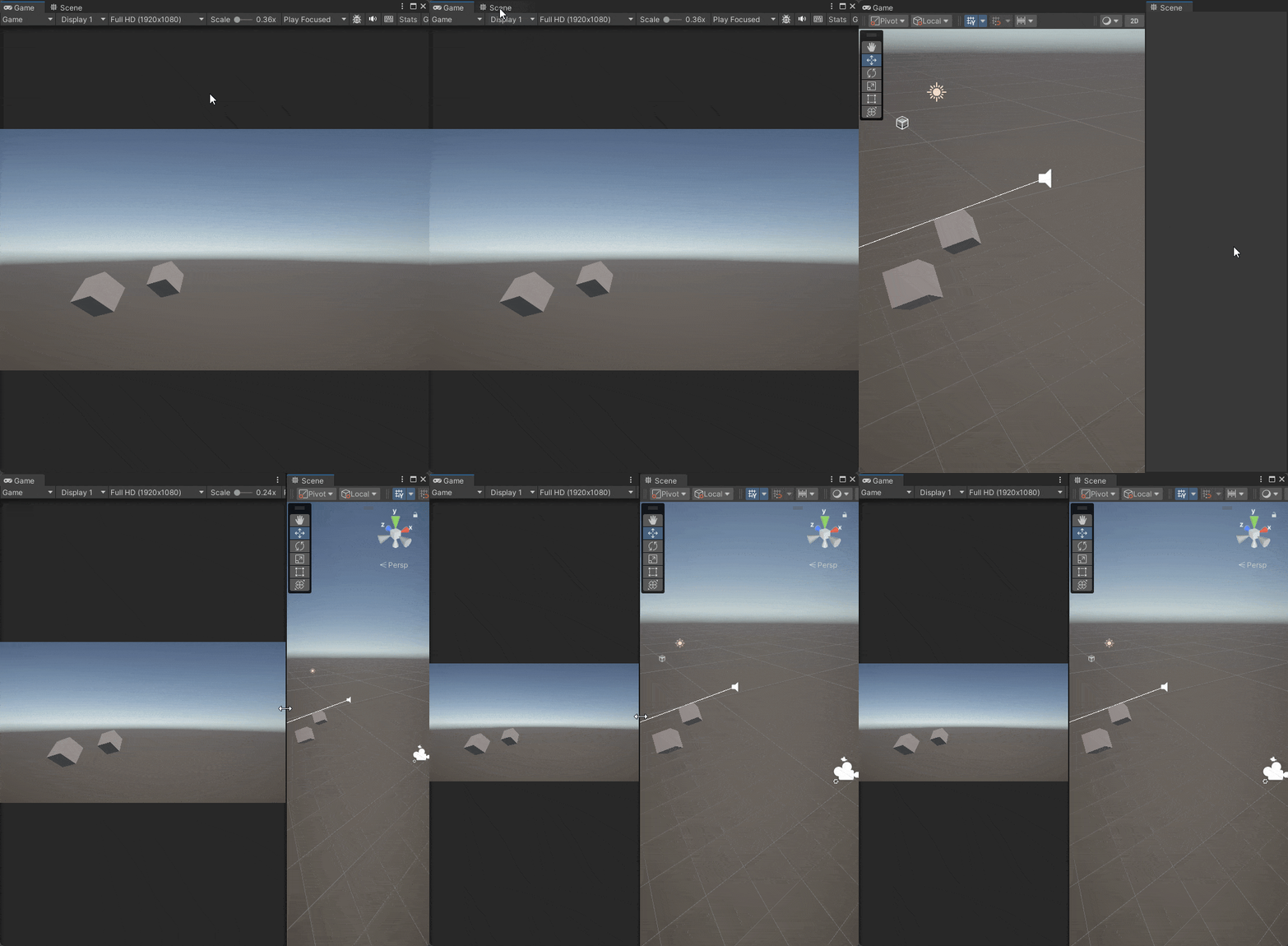
To add it as a tab of your player view section, drag and drop it into the same bar as the Game view.
Add the Scene Window to the same window group as your game view to tab back and forth between the game and scene view.
Customize the Scene Window
Unity allows you to customize the Scene Window to suit your needs. You can turn various features like gizmos, lighting, and audio sources on or off by using the icons at the top of the Window.
Begin Scene Editing
With the Scene Window open and customized, you can edit your game or application’s scenes. To build your project, you can add, move, and manipulate objects within the scene.
Save Your Layout
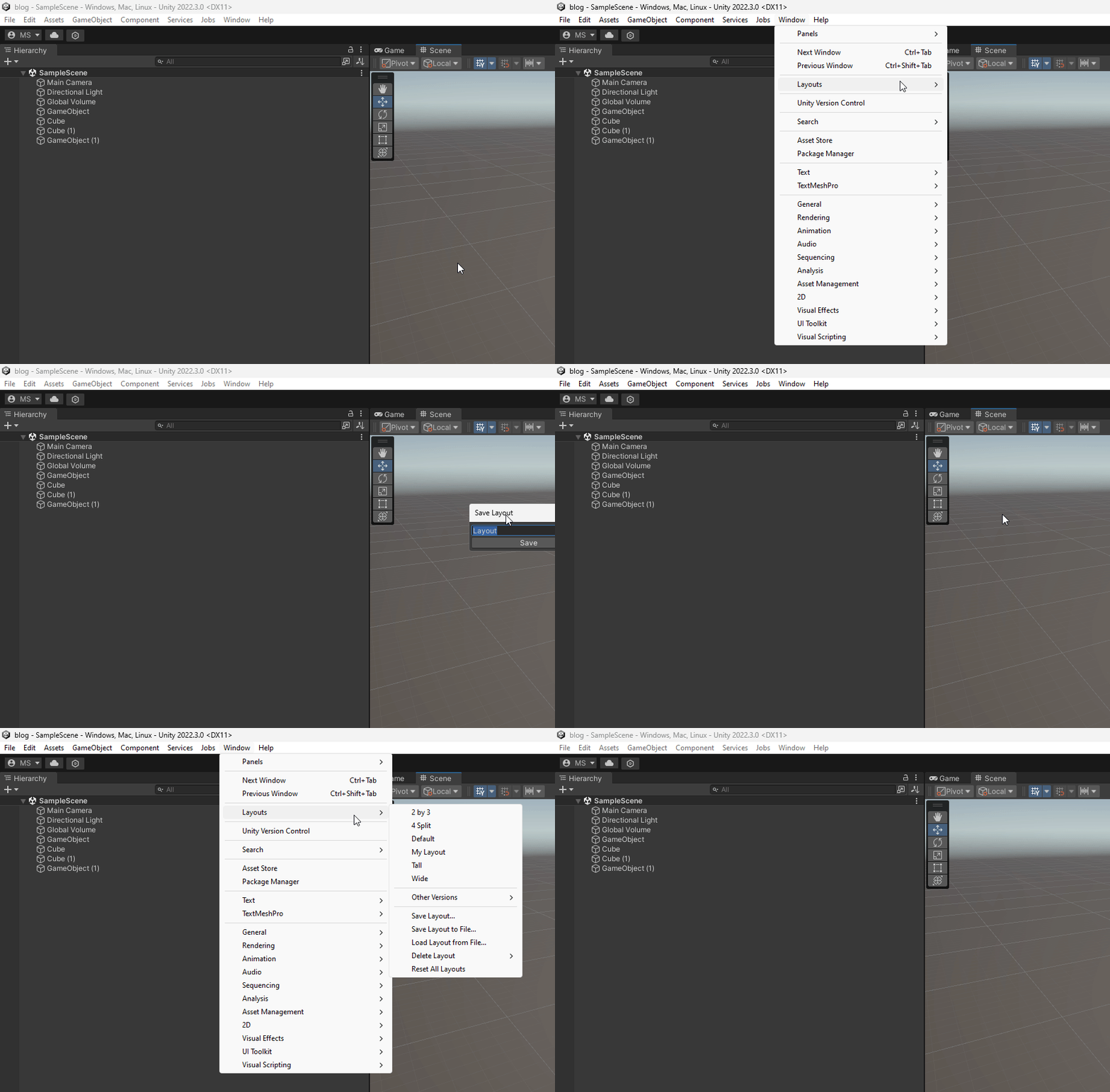
Don’t forget to save your window layout by clicking “Window” in the top toolbar and selecting Layouts > Save layout. When you save your setup, you ensure you can quickly return to that same layout later.
How do I maximize the scene view?
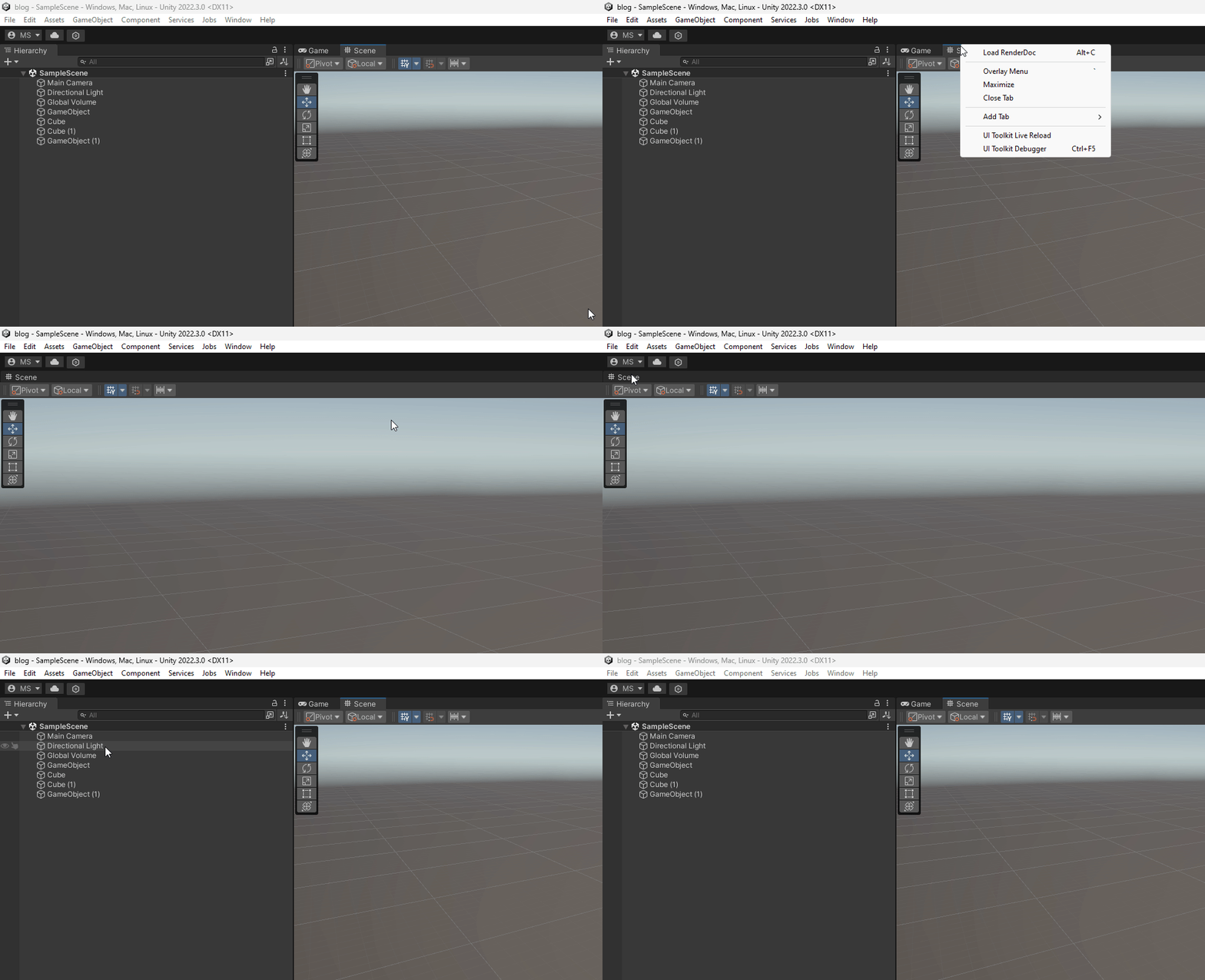
Right-click on the Scene tab, then click "Maximize".
How do I restore the scene view?
Right-click on the Scene tab again. You should see the “Maximize” option checked. Click “Maximize” again to restore the scene view to normal.
How can I quickly switch between different scenes in Unity?
Use the menu: Use the “File” menu and select “Open Scene” to choose from your existing scenes.
Use a Keyboard Shortcut: Use keyboard shortcuts like Ctrl + O (Cmd + O on Mac) to open the Scene Window.
Use the Project window: Double-click on the scene asset in your project to open it.
Can I open multiple Scene Windows at the same time?
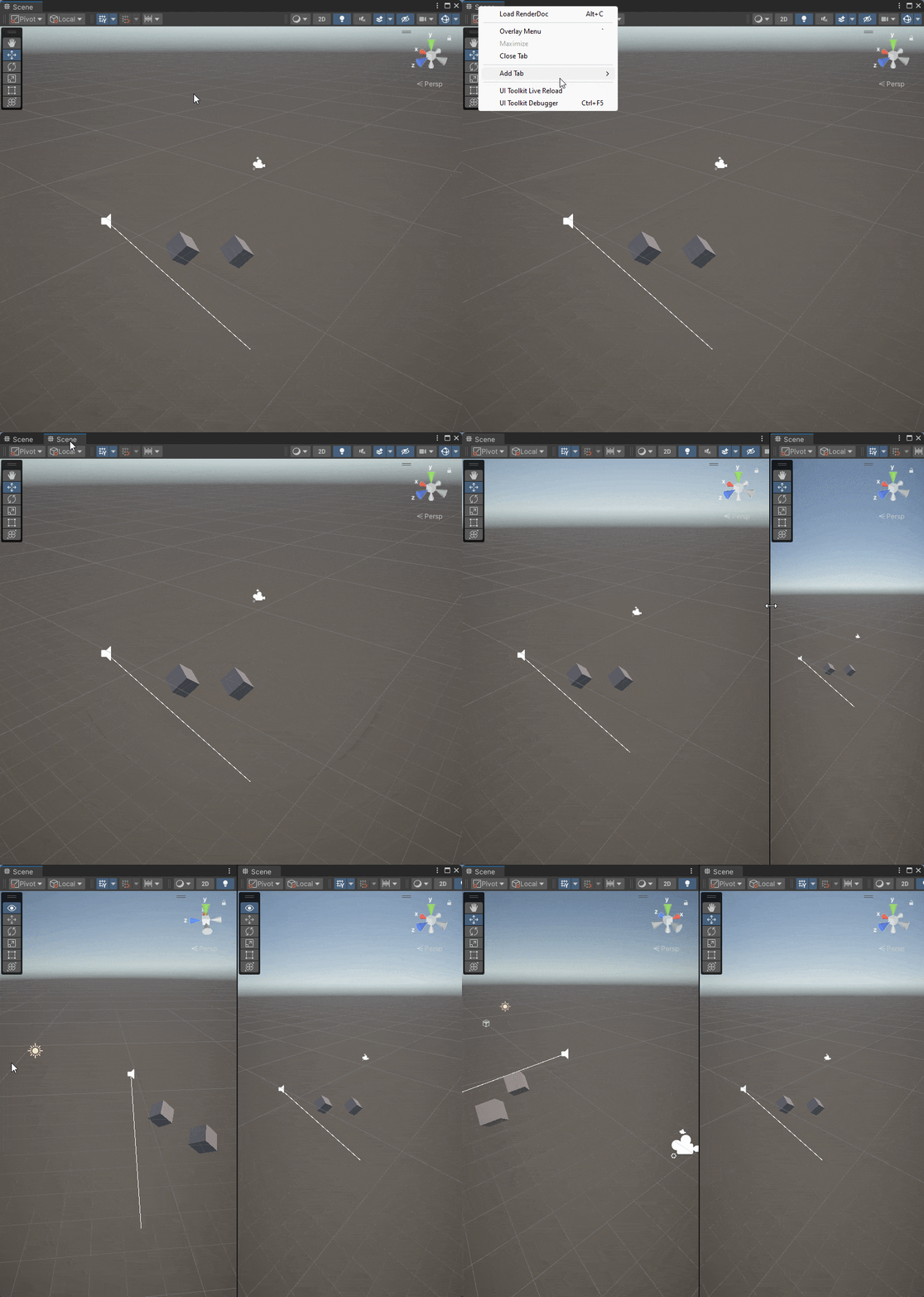
Yes. Unity allows you to have multiple Scene Windows open at the same time. Opening many scene windows can be helpful when working on complex projects. These projects often need you to reference the same scene from various viewports. To open a new Scene Window, right-click on the Scene tab, then select Add Tab > Scene.
Can I customize the layout of the Scene Window?
Yes! Unity’s Editor provides a customizable interface. You can arrange, dock, and resize various panels and windows, including the Scene Window, to create a workspace that suits your workflow. Experiment with different layouts to find the one that works best for you.
What should I do if the Scene Window is not displaying correctly?
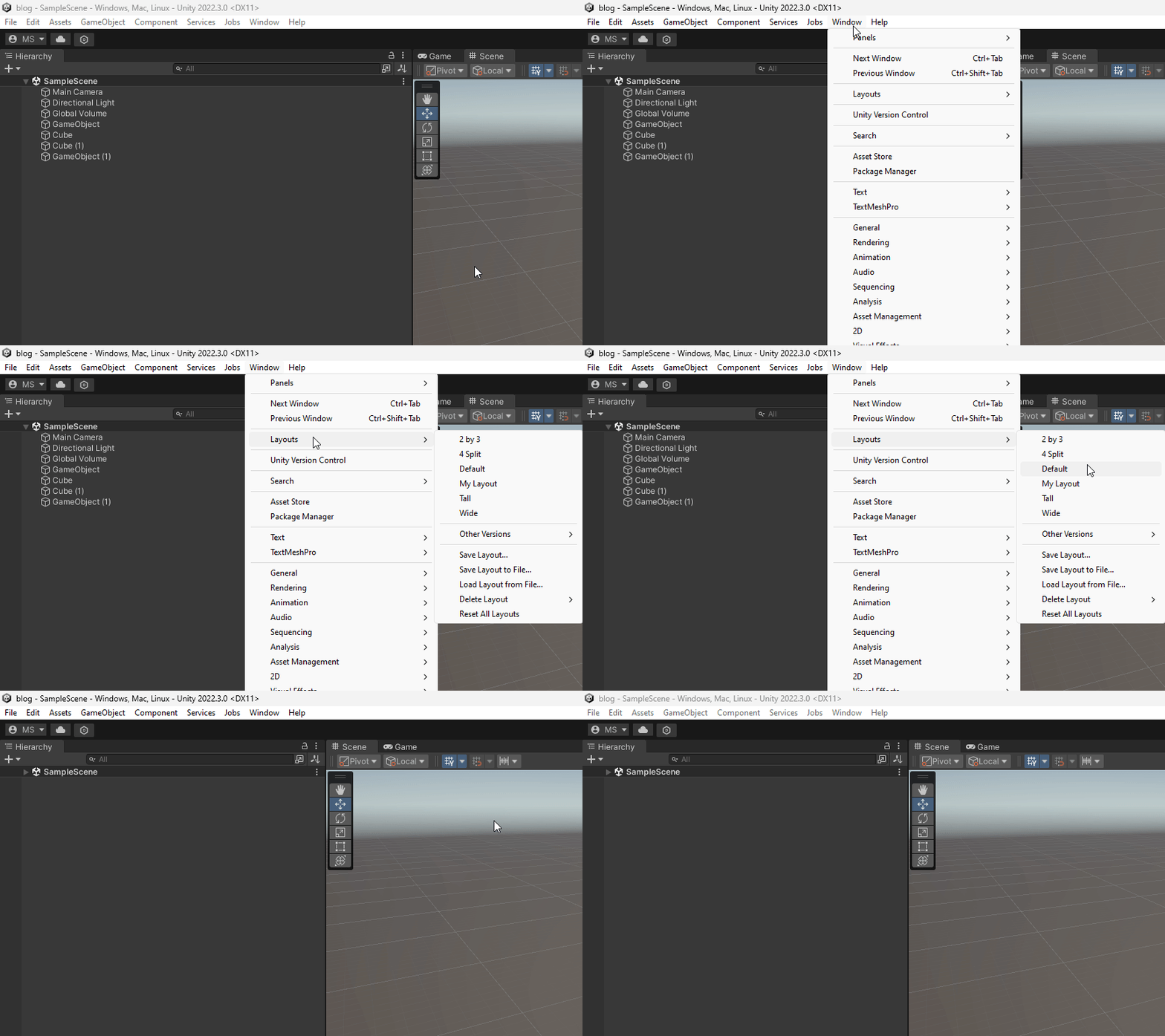
Reset the layout to its default settings. Go to the “Window” menu, select “Layouts,” and choose “Default.” Resetting the Unity layout should resolve most display-related problems.
How do I get back to normal view in Unity?
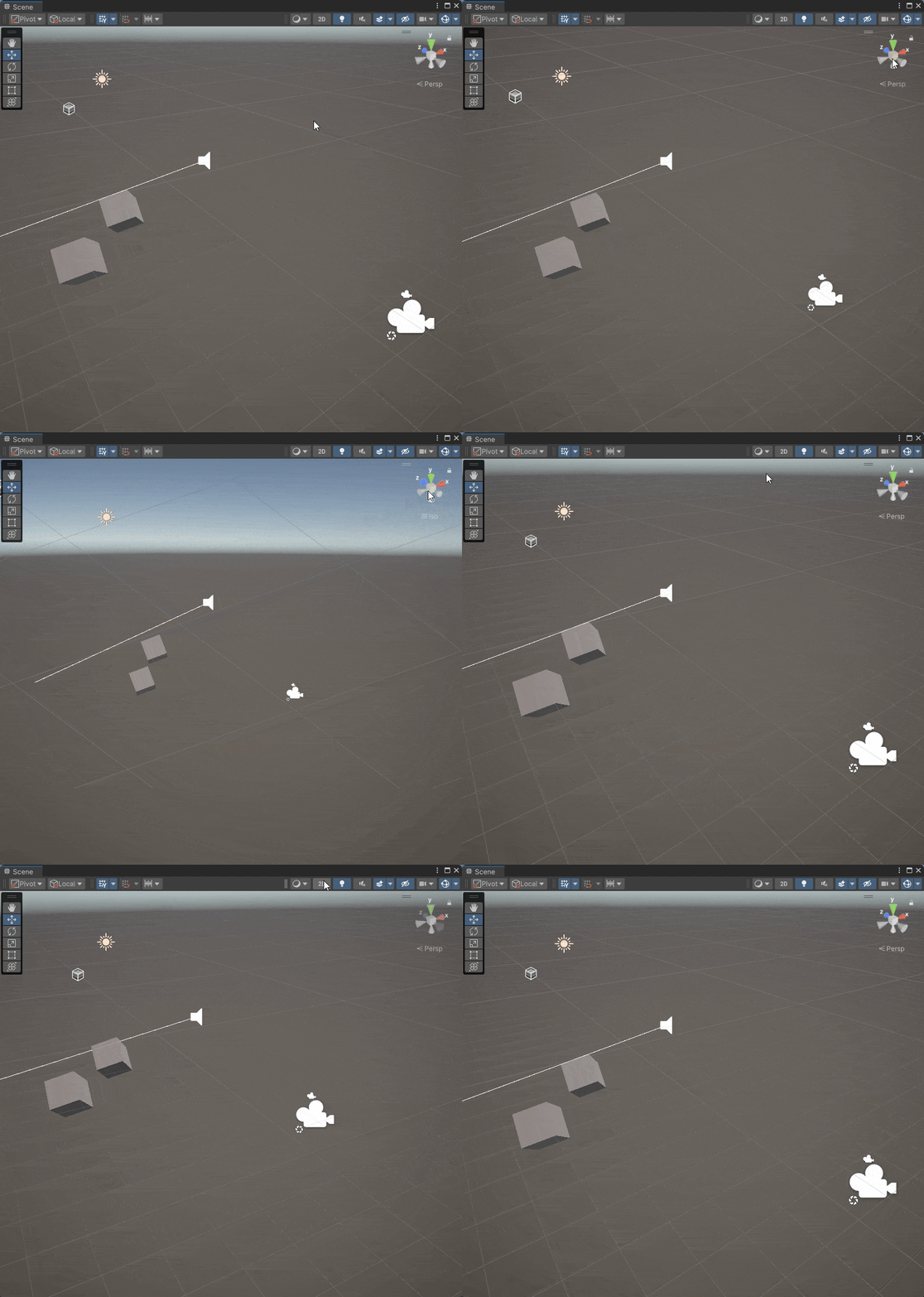
In the Scene View, a gizmo makes it easy to toggle between orthographic and perspective projection modes. A button also makes it easy to toggle between 2D and 3D modes. You likely hit one of these options. As a result, you can’t navigate your scene view. To toggle the 2D / 3D modes, click the 2D button at the top of the scene view. To toggle between orthographic and perspective mode, click the cube in the orientation gizmo.
Can I save different layout presets for the Scene Window?
Yes, Unity allows you to save and load different layout presets for the Scene Window. If you have specific workspace arrangements for each task, layout presets will help. To save a layout, go to the “Window” menu, select “Layouts,” and choose “Save Layout.” You can then load your saved layouts at any time.
Can I open the Scene Window in play mode?
Yes. You can have your scene Window open during play mode. And you can change scene objects during play mode, too.
To access the Scene Window while in Play Mode, dock your scene window next to your Game Window.
To anchor your Scene Window, click on your Scene tab, then drag and drop it next to the game window.
Remember that Unity will not keep any changes you make to your project during Play Mode when you exit. You can only permanently change the scene when the game is not running. Once you leave play mode, you can edit your scene as usual.
Conclusion
This comprehensive guide includes everything you need to know to master the Unity open scene window workflow!
Opening the Scene Window in Unity is a fundamental skill every game developer should master. With this guide, you can now open and customize the Scene Window. And you have some handy tips and FAQs to enhance your Unity experience.
Remember that practice makes perfect. Jump into Unity, open the Scene Window, and create amazing games and applications!
To continue leveling up your Unity skills, continue with our Unity Basics series: